
Dashboard: Monitor Performance Quickly
Filters:
- Store Selector: filter results by specific store.
- Date Range: define the time period for data analysis.
- Search: locate specific ads by goal name or SKU.
- Status: filter by All Status, Enabled, Paused, or Creating.
- Currency Switch: this toggle converts money metrics within the Chart Area only. It does not change the currency shown in the AI Ad list, which always follows the local marketplace currency.
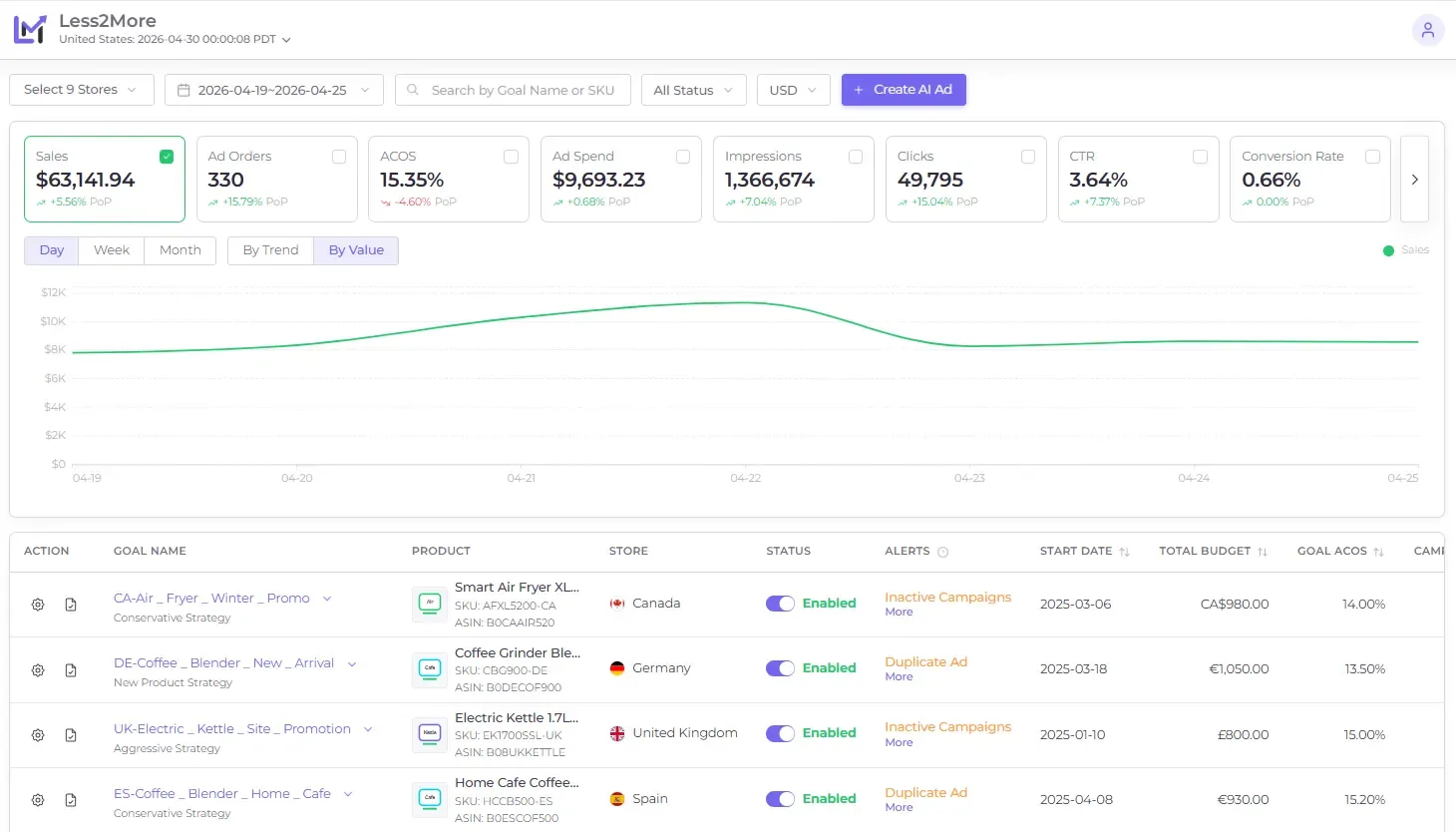
Common Actions in the List:
- Enable / Pause: toggle the AI Ad to synchronize the status of all underlying campaigns.
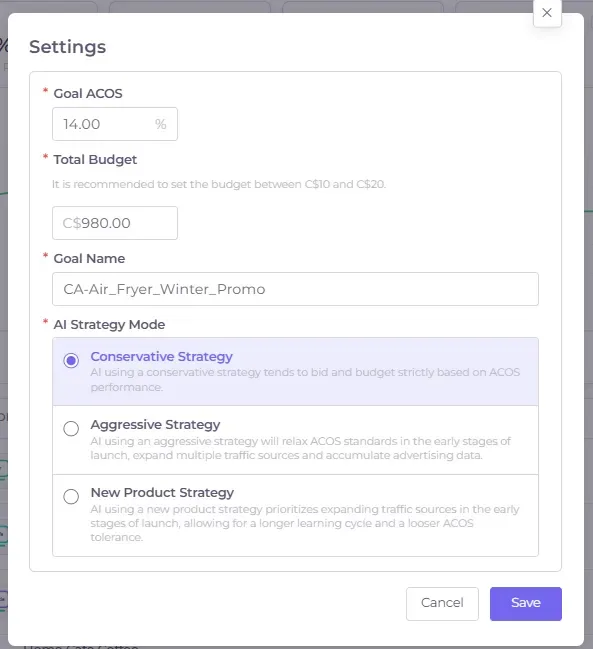
- Settings: update the goal name, total budget, Goal ACOS, or AI strategy mode.
- Goal name: click the name to open the Detail Page for deeper management.
Alerts:
Alerts highlight critical issues that impact delivery, such as: Authorization Expiry, Out of Stock, Inactive Campaigns
Detail Page: Manage Campaigns & Ad Groups
Click the AI Ad (Goal) Name to enter the detail view:
- Currency Display: the detail page always displays money values in the marketplace currency, regardless of the Dashboard currency switch.
- Granular Control: enable or pause specific campaigns and ad groups. Expand any campaign row to view its associated ad groups.
Ad Log
- Click the Log Icon in a campaign row to open the Ad Log.
- Select the Date Range, Change Level, and Type.
- Click Search to review the history.
Toggle vs. Status (Avoid Confusion)
- Toggle (Enable/Pause): controls the object state (e.g., DELIVERING, PAUSED, ARCHIVED).
- Delivery Status: explains why an ad is or isn't delivering (e.g., Out of Budget, Pending Review).
Note: These are different concepts-an ad can be "Enabled" but not "Delivering" due to its status.